Welcome to Proptia
Royal Oaks Residents,
We are excited to introduce Proptia, our new automated gate system, designed to streamline how we manage visitors and enhance safety within the community. The system now utilizes License Plate Recognition (LPR) cameras, offering a more accurate and efficient way to monitor and grant access.
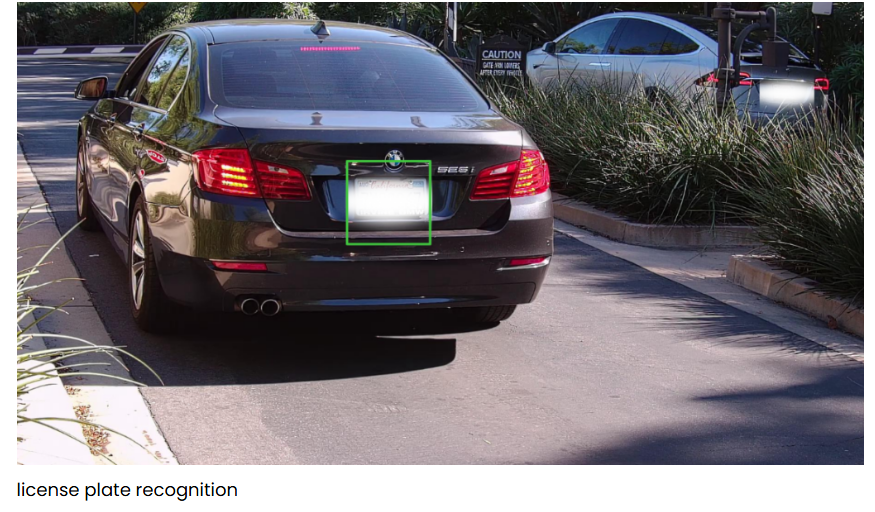
By using Proptia, residents will help streamline the entry process for everyone, including your guests and vendors. This means quicker access at both the Main Gate and Westpark South Gate, creating a smoother experience for all. You’ll have full control over who enters, when they enter the community, and for how long, ensuring that your home remains both accessible and secure!
Here’s everything you need to know to get registered and access Proptia:
Learn more: Proptia.com
Step 1: Check Your Email for Your Welcome Message
- Once you’ve completed your contact and vehicle information form as a resident, you’ll receive a registration email from Proptia.
- The email will have the subject line: “Welcome to Proptia. Let’s Get Started.”
- The email will be sent to the address you provided on your contact form (or the one currently on file). Be sure to check both your inbox and spam folder, just in case!
Step 2: What If You Don’t Receive the Email?
- If the registration email doesn’t show up in your inbox, please do not contact Proptia directly.
- Instead, reach out to your property management team for assistance at:
dr@pmghouston.com or call the HOA management office.
Important Notice About the Proptia Mobile App:
- The Proptia mobile app is not available on the App Store or Google Play.
- This is because Apple classifies it as a business app, so it can’t be downloaded or registered by the public.
- You won’t be able to search for or download the app on your own until your information is added by an administrator.
Step 3: Download the App Using the Links in Your Email
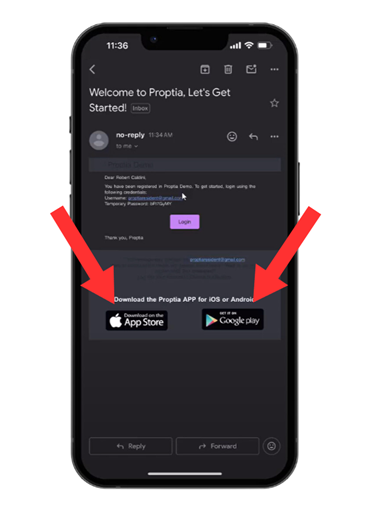
- Once you complete the registration process in your welcome email (using the temporary password provided), you’ll receive download links for both the iPhone and Android versions of the Proptia app.
- Simply click on the links in your registration email to install the app on your phone.
- Note: You need to complete the registration via the email first before the app will be accessible to you.
Step 4: Why Residents NEED to Use the Mobile App?
- As a Resident, You’re In Control!
- The app is the easiest and fastest way to manage your visitors and vendors entering the community.
- Manage Your Visitors: You’ll be responsible for managing access for anyone you allow into the community. This includes guests, family, friends, vendors, and service providers.
- Reduce Traffic at the Gates: By using Proptia, you’ll help reduce congestion and wait times at both the Main Gate and Westpark South Gate, keeping the entry process quick and efficient for all residents.
- Keep Our Community Safe: Proptia gives you the tools to ensure only authorized visitors are granted access. Let’s all do our part to maintain a secure and welcoming environment for everyone.
If you have any questions, feel free to reach out to the property management team at dr@pmghouston.com
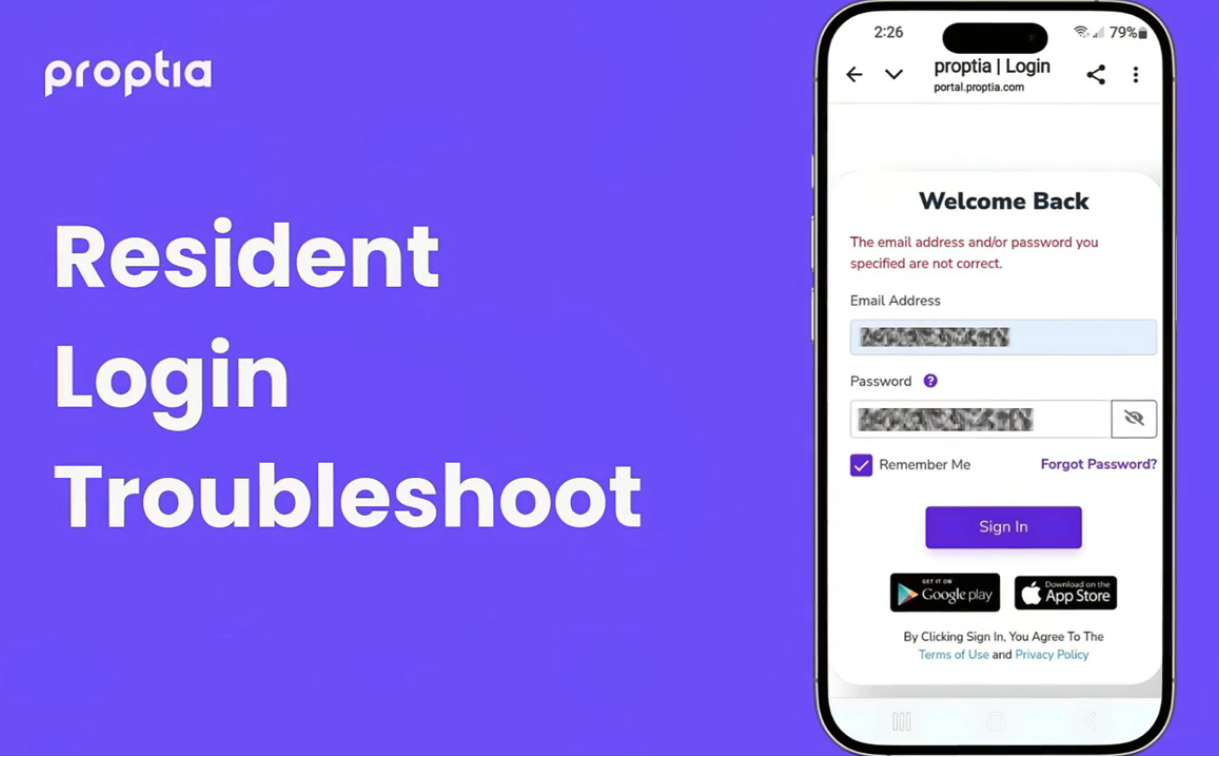
Resident login Troubleshooting Video: https://www.youtube.com/watch?v=068I3YgzzfU
Links to Download Your App:
Download iPhone App– https://apps.apple.com/hr/app/proptia-2-0/id6504521097
Download Android App – https://play.google.com/store/apps/details?id=com.proptia.android.resident
Take some time to watch the following videos to get started with the system:
Watch: Getting Started with Proptia
Watch: Resident Portal General Overview
New Visitor Management System – Adding Visitors to Proptia
❗ Please note: While HOA Management will populate Proptia with homeowner information and vehicle registrations, homeowners are responsible for adding and maintaining their personal visitor lists. It is important to update your visitor list regularly to ensure your guests and vendors can access the community without delay.
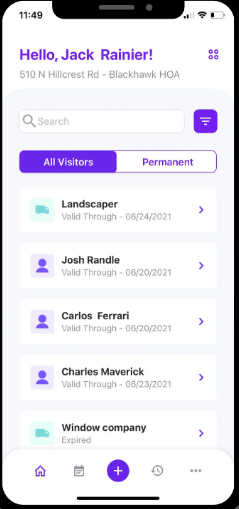
How to turn off the default for the Quick Add Visitor: View
How to Register Temporary Visitors on Mobile App: View
How to Register Permanent Authorized Visitors on Mobile App: View
How to Register Temporary Vendors on Mobile App: View
How to Register Temporary Visitors on Web Portal: View
How to Register Permanent Authorized Visitors on Web Portal: View
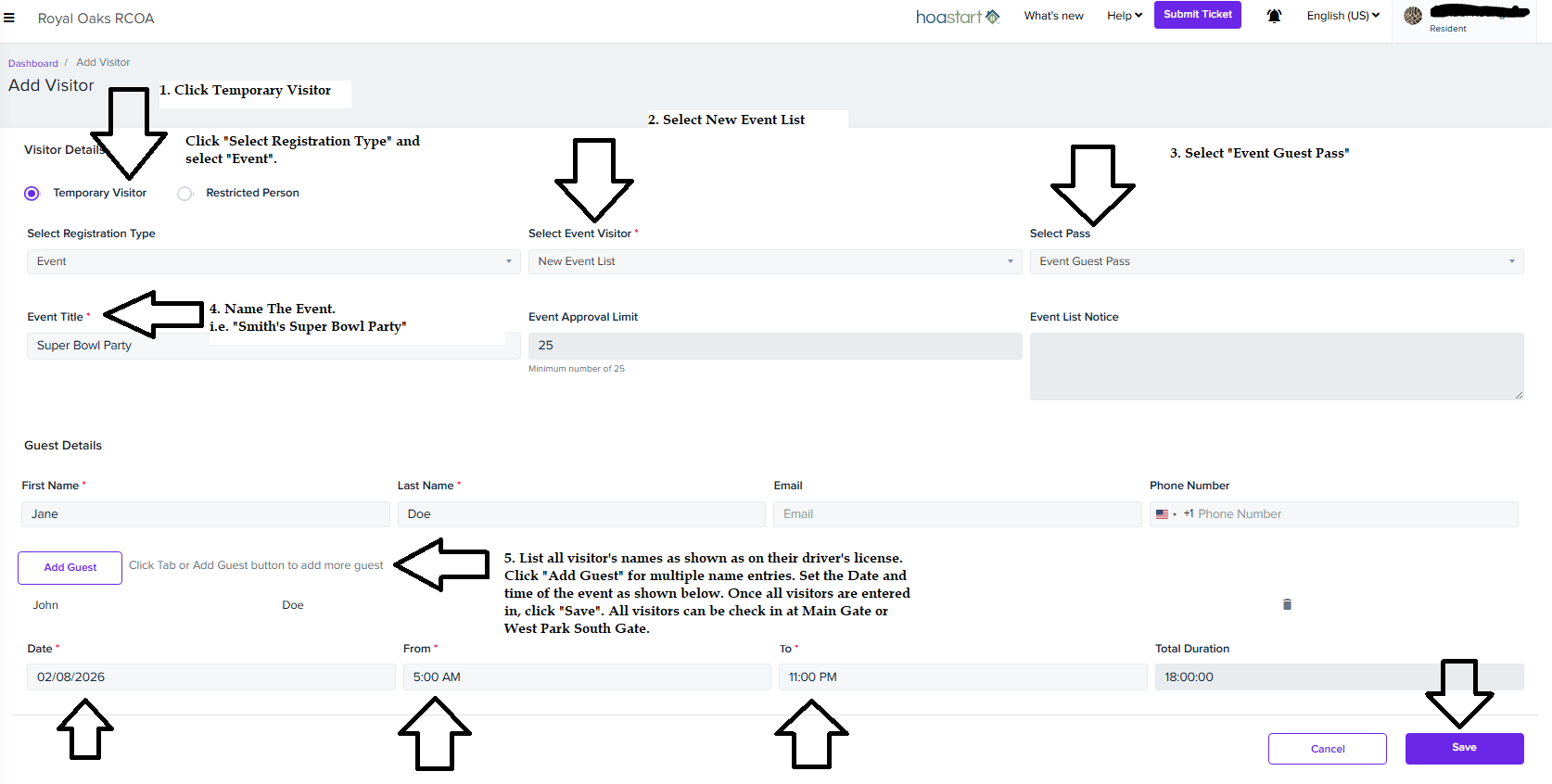
How to Create an Event & add Guest List on Mobile App: View
How to Create an Event & add Guest List on Web Portal: View
How to Register Pets in the Pet Directory- Web Portal Only: View
❗Please note: Temporary guests, Permanent guests, and Vendors you will be offer different options for Pass-Types.The Pass-Types have been created and made available in keeping with the RORCOA Rules & Regulations.
Add Your Associated Residents (if applicable)
Watch “How to Add Associated Residents” to the system. How to add Associated Residents
Get familiar with the software in the Knowledge Base
Visit the Resident Knowledge Base – Knowledge Base